Mp4 to Mp3 - Convert Video to
- 4.6
- Rating
- 1.00M
- Installs
- Free
- Price

 Analysis by App-foxy
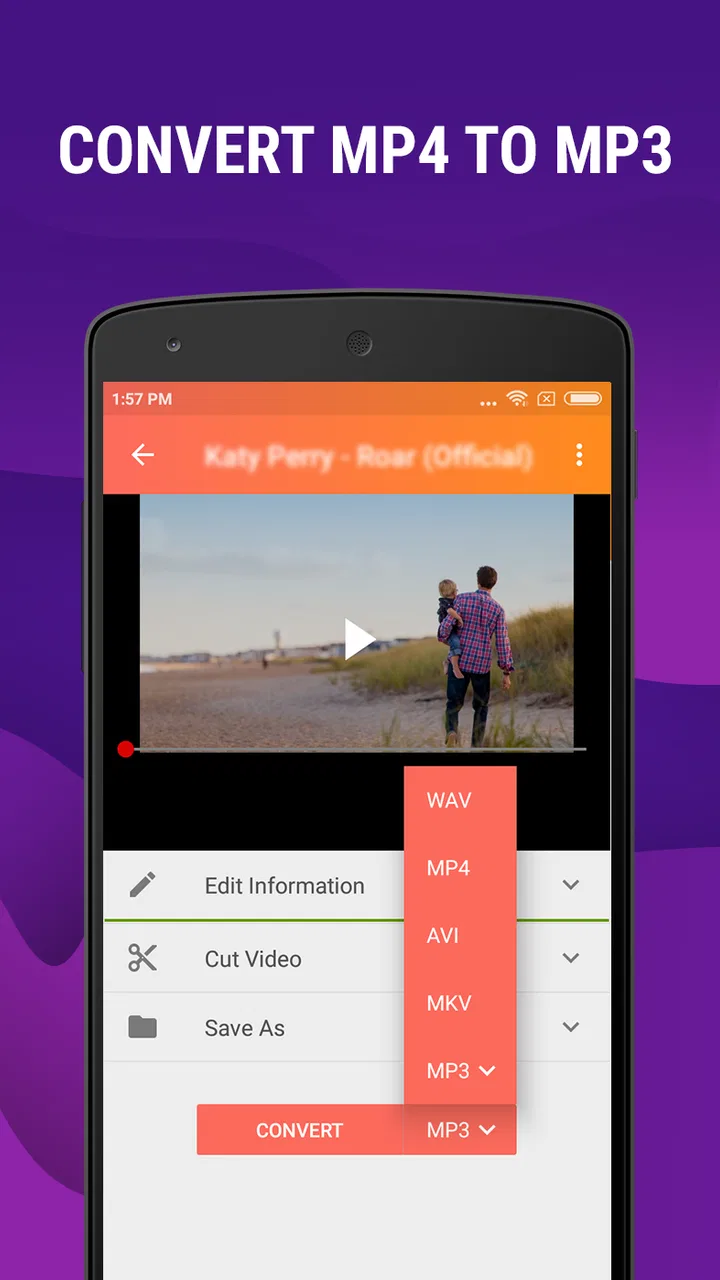
When I need to turn a video file into an audio track without opening a full desktop editor, Mp4 to Mp3 - Convert Video to is the kind of focused utility I look for. I tested it as an Android app in the video players and editors category, and its appeal is easy to understand: it concentrates on converting MP4 or M4A files into MP3 audio, then adds a ringtone cutter and a way to organize music. It is free to install, although in-app purchases range from around six dollars to thirty dollars per item, so I would check the purchase screen carefully before treating every option as included.
My first impression was that this is not trying to replace a complete video editor, a streaming service, or a serious music-production workstation. It is a practical file converter for a particular job. That narrow purpose is a strength when I have one clip, lecture recording, family video, or downloaded personal file that I want to hear as audio. It becomes less convincing if I need multitrack editing, detailed sound cleanup, cloud collaboration, or a large library with advanced tagging.
Using it on a shared household device
A realistic household example is a tablet used by several people. One person may have a personal video from a phone and want only its audio for listening during a commute. Another may want to cut a short section into a ringtone. A third person may simply be trying to keep the device’s music folder tidy. In that setting, the app’s focused workflow is more useful than a large editor because each person can approach the same basic task without learning a complicated timeline.
You May Also Like

 Blood Strike: 2.5 Anniversary
Blood Strike’s Loadouts Turn Every Drop Into a Tactical Gamble
A close look at Blood Strike’s custom loadouts: how fast access to signature weapons reshapes its battle royale rhythm, rewards preparation, and narrows the gap between fights.

 Pandora - Music & Podcasts
Pandora’s Music Is Easy to Start, but Harder to Recover
Pandora’s strength is its low-effort path from a seed to a station. Its weak spot is how much confidence it asks you to place in connection, setup, and quiet recovery.

 8 Ball Pool
 Is Built on Rivalries, Rematches, and Routine
A close look at the rivalries, rematches, shared routines, and unanswered safety questions that turn a quick pool match into a persistent mobile community.

 Samsung Music
’s Quiet Strength Is Playing What You Already Own
Its reach comes less from spectacle than from dependable access to a personal library. That simplicity is both the app’s strongest retention engine and its ceiling.

 AccuWeather: Weather Radar
AccuWeather Review: A Quick, Clear Forecast for Everyday Decisions
For everyday plans, the best forecast is the one you can understand quickly. AccuWeather makes rain timing, radar, and local conditions easy to act on, with a few trade-offs.

 Hill Climb Racing
Why Hill Climb Racing Still Turns Crashes Into One More Run
A tiny car, a bumpy hill and one more upgrade: Hill Climb Racing keeps resurfacing because its simple chaos makes every near-miss feel personal.
More From Our News Desk



I would still keep expectations practical. Converting a file does not magically improve its original sound. If the source video has background noise, low volume, or compressed audio, the resulting MP3 carries those limitations with it. The app is best understood as a format and trimming tool, not an audio restoration suite. That distinction matters when someone expects a phone recording to sound like a studio track after conversion.
The basic household routine is straightforward: identify the source file, convert it, trim a section if needed, and place the result where it can be found later. I found that the organization feature matters more than it first appears. A converted file is only useful if I can recognize it afterward. Naming files clearly before or after the process, rather than leaving several vague copies in a shared folder, prevents confusion between family members.
For a parent, partner, or roommate sharing one device, I would create a simple agreement about whose files are being converted and where finished audio should go. That is not a special control supplied by the app; it is just a sensible way to avoid accidental clutter. The application gives people a tool for handling media, but it does not replace household file discipline.
What the conversion workflow is actually good at
The strongest use case is a one-off conversion. Imagine recording a cooking lesson, a language exercise, or a voice performance inside a video and wanting to listen without keeping the visual track open. MP4 and M4A sources can be useful here because the app focuses on extracting or converting their audio into MP3. I would use it when convenience matters more than preserving every possible technical detail of the source.
There is also a useful distinction between conversion and cutting. If I need the entire audio track, I can treat the job as a format change. If I only need a short passage, the ringtone cutter gives the workflow a second step. That makes it suitable for creating a brief alert from a personal recording or selecting a memorable section from a clip. I would preview the chosen section carefully before saving, because a cut that begins or ends abruptly can sound unfinished even when the conversion itself works correctly.
One non-obvious tip is to make the cut after deciding what the file is for. A ringtone needs a concise, immediately recognizable section, while a spoken recording may need a longer beginning so the listener understands the context. Using the same trimming habit for both usually produces an awkward result. I prefer to keep a full converted copy when the source is important and create a separate shortened version for the ringtone or quick-use purpose.
Another practical trade-off is storage. Keeping both the original video and several converted copies can quickly make a shared phone or tablet harder to manage. If the MP3 is only a temporary listening copy, I would remove it after use. If it is a family recording or an important personal archive, I would retain the original video and consider the MP3 a convenience copy rather than the master file.
Setup boundaries before anyone starts tapping
The app is listed for Everyone and runs on Android devices using version seven or later of the operating system. That broad age context makes it approachable for a household, but an age rating should not be confused with automatic supervision. A child who can browse personal videos, rename files, or make purchases still needs the same guidance that applies to other media tools.
Before handing over a shared device, I would check which folders contain private recordings and decide whether everyone should be able to work with them. The important boundary is not just technical access; it is consent. A family member should not convert, trim, or redistribute another person’s recording without permission, especially when the source includes a private conversation, school material, or someone else’s voice.
I would also explain the difference between a local file and an online video. This utility is suited to media already available on the device. It should not be presented as a way to bypass restrictions or copy content that the user has no right to use. For household use, the safest examples are personal videos, recordings made by the family, and files that the owner has expressly allowed others to handle.
The purchase boundary deserves attention as well. The app is free, but optional purchases are shown at several price points, from $6.49 to $29.99 per item. On a shared device, I would avoid letting a young user explore purchase screens unsupervised. I would also tell every household member which functions are available without paying and which may lead to a purchase prompt, rather than assuming that “free” means every tool is permanently unlocked.
That setup conversation is especially useful because the app’s simple purpose can make it look harmless. A converter can still create duplicate files, consume storage, expose personal recordings to the wrong person, or lead to an unwanted transaction. None of those concerns make the app unsuitable; they simply define the sensible limits around shared use.
Coordinating files, names, and finished audio
Coordination is where I see the biggest difference between a smooth household experience and a messy one. If several people use the same device, I recommend a naming pattern that includes the subject and purpose, such as a clear description followed by “full” or “ringtone.” I would avoid relying on automatic-looking names alone, because a list of similarly converted files becomes difficult to sort once more than one person has used the app.
The music organizer can help make the results easier to locate, but organization only works when the household agrees on a destination. One person might want converted audio kept with music, while another may prefer a separate folder for temporary files. Mixing both approaches creates uncertainty about what can be deleted. My preferred routine is to keep finished, wanted tracks together and review temporary conversions after the listening or ringtone task is complete.
A useful workflow for a shared phone is to convert one source at a time rather than selecting a large batch without a plan. That makes it easier to confirm the right file, choose an understandable name, and check the result before moving on. If the source is valuable, I would play the output from start to finish or at least inspect the beginning, middle, and end. This catches the common practical problems: choosing the wrong video, cutting too early, or saving an empty or unexpectedly short result.
For a family member who is less comfortable with file management, I would demonstrate the process once and leave a short written routine nearby: choose the source, select the desired output, check the result, and remove unwanted copies. The app’s focused design helps here because there are fewer creative decisions than in a full editor. Still, the organizer is not a substitute for explaining where files live and who owns them.
There is also a coordination issue around backups. If the only copy of a meaningful recording is converted and then the original is deleted, the household may lose the better source. MP3 is convenient for listening, but I would preserve the original video whenever the recording has sentimental, educational, or legal importance. The conversion should serve the family’s listening needs without becoming an accidental archival decision.
Age, trust, and appropriate expectations
Because the content rating is Everyone, I can imagine this app being used by adults and older children for ordinary media tasks. The rating does not tell me that every source file is appropriate for every user, though. The app processes whatever media the device owner chooses, so the household still decides which recordings a child may access and which files should remain private.
For a younger user, the most useful lesson is ownership: converting a file does not grant permission to share it. A child might reasonably want a ringtone from a family video, but the people heard in that video should agree. The same principle applies to school recordings, friends’ clips, and downloaded material. I would frame the app as a tool for working with media the user is allowed to use, not as a shortcut around someone else’s rights.
Trust also includes checking the result. A child may think a conversion failed because the audio is quiet, when the original recording was quiet too. An adult can help distinguish a technical problem from a source-quality problem. This is one reason I value the app’s narrow role: it creates an opportunity to teach basic file and audio awareness without overwhelming the user with professional controls.
At the same time, I would not recommend it as the only solution for someone who needs detailed editing. A musician wanting precise fades, equalization, multitrack work, or lossless project handling would be better served by a dedicated audio editor. Someone who mainly watches online content may prefer an official offline-listening option where available. And anyone who needs desktop-level batch processing, metadata control, or automation will likely outgrow this mobile converter quickly.
The app is more appropriate for a person who values speed and simplicity. I would recommend it to a family member who says, “I have this video, but I only want the sound,” rather than to someone who asks for a complete media-production environment. That distinction saves frustration and prevents the common mistake of judging a small utility by features it was never designed to provide.
How it compares with the usual alternatives
The most obvious alternative is a full video editor. Editors offer more control over timelines, transitions, effects, and audio placement, but that flexibility comes with extra menus and a longer learning curve. For a single MP4-to-MP3 task, I find a focused converter more comfortable. If the job involves changing the video itself, synchronizing several tracks, or applying detailed edits, the full editor becomes the better choice.
A desktop converter is another alternative. It can be preferable when I have many files, need a larger preview, or want more control over output settings. The phone app wins when the source is already on the Android device and I want to finish without transferring files to a computer. The trade-off is that a compact mobile workflow generally feels less suited to complex libraries and professional preparation.
There are also general music-player tools, but they usually assume the audio already exists in a compatible form. They may organize and play tracks well without helping me extract audio from a video. This app fills that earlier gap. I would use a music player after conversion, not instead of it, when my goal begins with an MP4 or M4A source.
Online converters can seem convenient, yet I prefer a local mobile workflow for personal recordings because it avoids uploading a private video simply to extract its sound. The important qualification is that I still need to pay attention to where the app saves files and who can access the device. Local handling improves the workflow, but it does not remove the need for sensible privacy habits.
What I noticed about the current release and value
The developer is HGPUBLISHING LIMITED, and the current version is 1.5.5.4. The app has been available since January 11, 2018, which gives it a longer presence than a brand-new utility. Its average rating is 4.6 from around twelve thousand ratings, with hundreds of written reviews, and it has passed one million installs. Those figures suggest that the straightforward conversion idea has found a substantial audience, although popularity alone does not guarantee that it matches every household’s needs.
I like that the entry cost is low: I can try the basic concept without paying upfront. The caution is that the in-app purchase range is wide enough to make the upgrade path important. Before confirming anything, I would read the wording on the purchase screen and decide whether the extra value matters for my specific workflow. If I only convert an occasional family clip, paying for advanced convenience may not be worthwhile. Frequent users may judge that differently.
One useful way to assess the app is to test it with three different source types: a video with clear speech, a music-oriented clip, and a short recording intended for a ringtone. That small trial reveals whether the workflow suits the household before anyone converts a large collection. It also exposes the personal trade-off between speed, file organization, and the amount of trimming control needed.
I would not choose this app solely because it has a high rating or a large install base. I would choose it because the task is specific and the app keeps that task accessible. The rating and reach reassure me that it is not an obscure experiment, while the purchase structure reminds me to stay deliberate about what I actually need.
My household verdict
After using it, I see Mp4 to Mp3 - Convert Video to as a practical shared-device utility rather than a complete media suite. It is a good fit when someone needs to turn a personal MP4 or M4A file into an MP3, trim a short section for a ringtone, and keep the resulting audio easier to find. The workflow is especially comfortable for occasional household tasks where a desktop editor would be excessive.
I would recommend it to adults, families, and less technical users who can agree on file ownership and storage habits. I would pair that recommendation with three simple rules: use media you are allowed to handle, keep important originals, and review purchase prompts before confirming them. Those rules matter more than any single convenience feature when several people share one device.
I would skip it if I needed professional audio editing, large-scale batch management, detailed output control, or a complete video-production environment. In those cases, a dedicated desktop or audio editor would be a better investment. For the narrower job it targets, though, the app is easy to understand and genuinely useful. My recommendation is positive when the household wants a simple converter, not a replacement for a full editing studio.
FAQs for Mp4 to Mp3 - Convert Video to
01What is Mp4 to Mp3 - Convert Video to, and what does it do?
Mp4 to Mp3 - Convert Video to is a media conversion app designed to extract audio from video files and save it in MP3 format. It can be useful when you want to listen to the soundtrack, speech, music, or other audio from a video without keeping the visual content. The app generally focuses on a simple conversion process suitable for everyday users.
02How do I convert an MP4 video into an MP3 audio file?
After opening the app, select the MP4 video stored on your device and choose MP3 as the output format, if the app presents multiple format options. You may also be able to adjust audio quality or file details before starting. Tap the conversion button and wait for processing to finish. The resulting audio file is normally saved in the app’s output folder or your device’s media storage.
03Does Mp4 to Mp3 - Convert Video to work without an internet connection?
In most cases, converting a video already saved on your phone can be completed offline because the processing takes place directly on the device. This is convenient when traveling or when you have limited mobile data. However, advertisements, updates, cloud-related features, or certain file-selection functions may require an internet connection, depending on the app version and operating system.
04What video and audio files are supported by the app?
The app is primarily intended for converting MP4 videos into MP3 audio files, but compatibility can depend on the video’s internal codec, resolution, size, and how it was created. Some files may fail if they are damaged, protected, or encoded in an unusual format. Before downloading, check the current store listing for supported extensions and any stated file-size limitations.
05Is it safe and legal to use Mp4 to Mp3 - Convert Video to?
The app itself is generally intended for personal media conversion, but users should review its permissions, privacy policy, advertising behavior, and developer information before installing it. Legal responsibility depends on the material being converted. You should only extract audio from videos you own, created yourself, or have permission to use. Avoid converting copyrighted content when doing so would violate the owner’s rights or local law.
Pros
- Converts MP4 videos to MP3 audio quickly and easily.
- Supports extracting audio for offline listening.
- Simple interface suitable for users of all experience levels.
- Useful for creating audio files from personal video recordings.
- Offers convenient sharing of converted files to other apps.
Cons
- Conversion quality may depend on the original video's audio track.
- Large videos can take longer to process and use more storage.
- Some advanced audio options may be limited or unavailable.
- Free features may include advertisements or upgrade prompts.
- Users should verify copyright permission before converting downloaded videos.

Mp4 to Mp3 - Convert Video to
Gallery